Invite team members
Invite colleagues or clients to your workspace by email and choose their role.
Everyone on your team can work in the same workspace, with a role that decides what they can do.
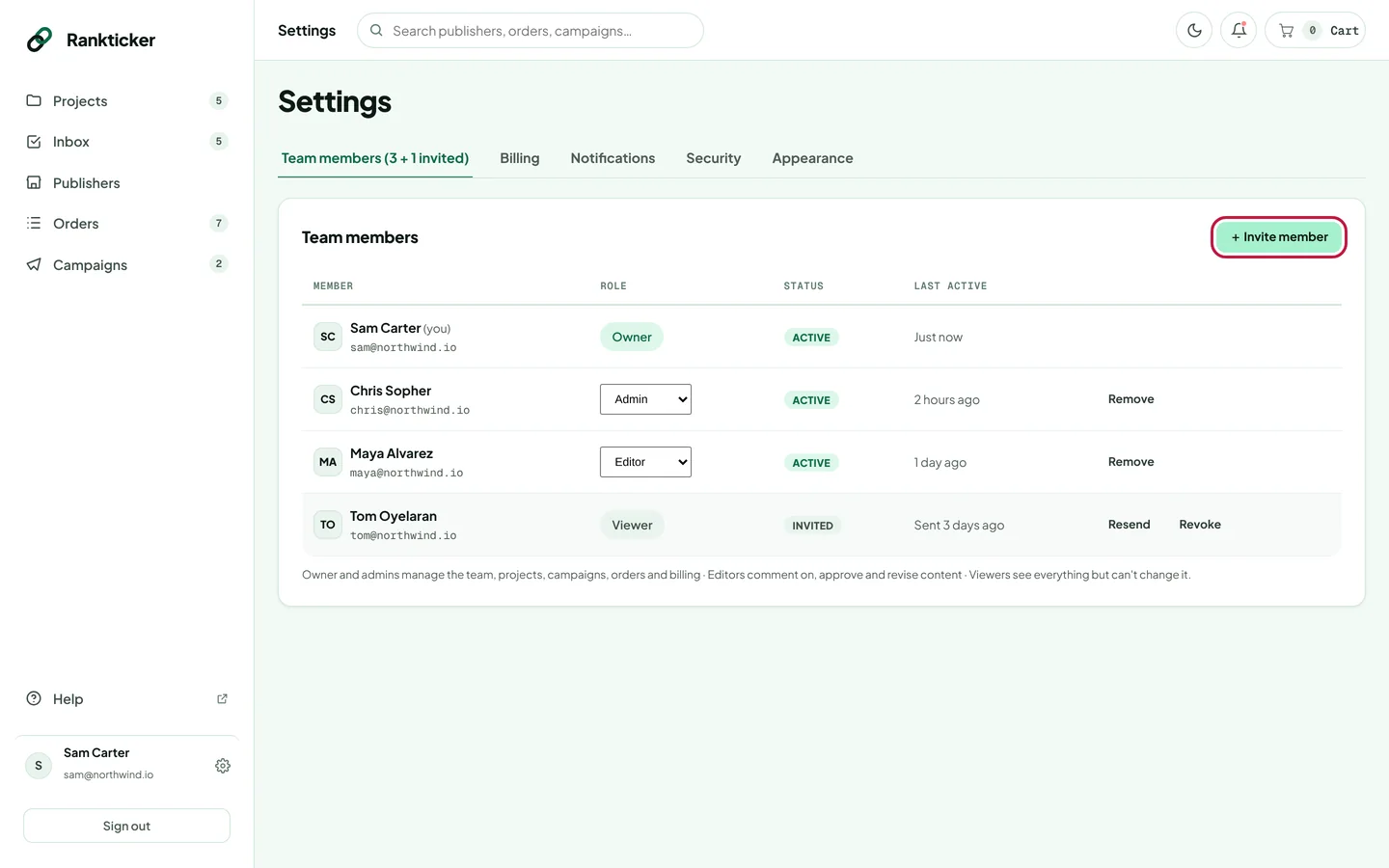
Click your name at the bottom of the sidebar to open Settings. You land on Team members.
Click + Invite member.
Enter their full name and work email, and choose a role: Admin, Editor or Viewer. See what each role can do.
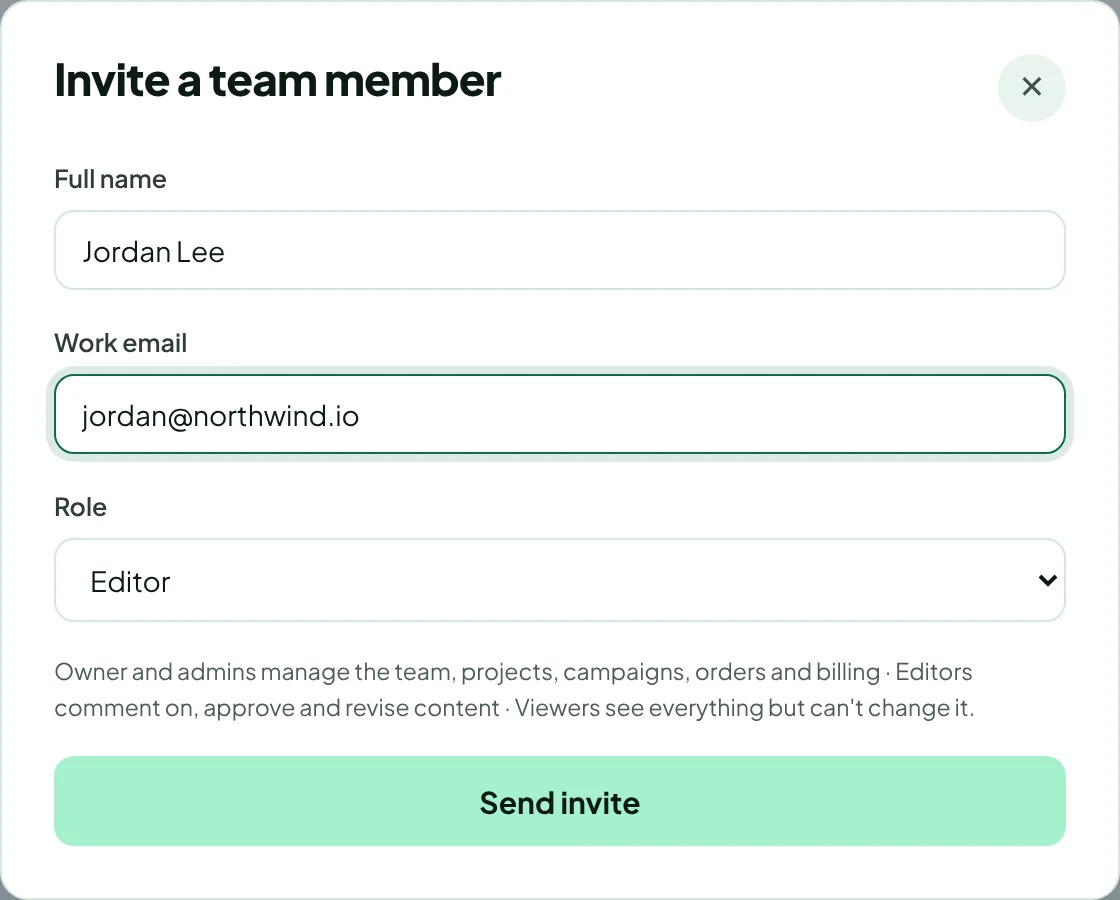
Click Send invite. We email them a link, and they appear in the list as Invited until they accept.
They open the link and sign in, or create an account, with the email address you invited. They then land in your workspace and see its projects, campaigns and orders.
Only the Owner and Admins can invite people. Admins can invite Editors and Viewers; only the Owner can add another Admin.
Resend or cancel an invite
Pending invites are listed under your team members. Click Resend to email a fresh link, or Revoke to cancel it. A revoked link stops working straight away. Invite links expire after 14 days, so resend one if it has run out.
Ask new teammates to turn on two-step verification as soon as they join. See Turn on two-step verification.
Common questions
Is there a limit on team members?
No. There's no per-seat charge during early access.
My teammate says the invite doesn't work
Check they signed in with the exact address the invite went to. If that address already has its own Rankticker workspace with projects or orders, the invite can't move it. Invite another address, or email hello@rankticker.com and we'll merge the workspaces.
Thanks for letting us know.
Sorry about that. Tell us what was missing at hello@rankticker.com and we'll improve it.