Update your payment method and billing details
How payment methods work on Rankticker (you choose at checkout), and how to change the billing email, name, address and VAT number on your receipts.
Payment methods
You don't need to save a card in advance. You choose how to pay each time you check out: a card (Visa, Mastercard, American Express), Apple Pay or Google Pay. To pay with a different card, simply enter it, or pick another wallet, at checkout. Card details go straight to Stripe and are never seen or stored by Rankticker.
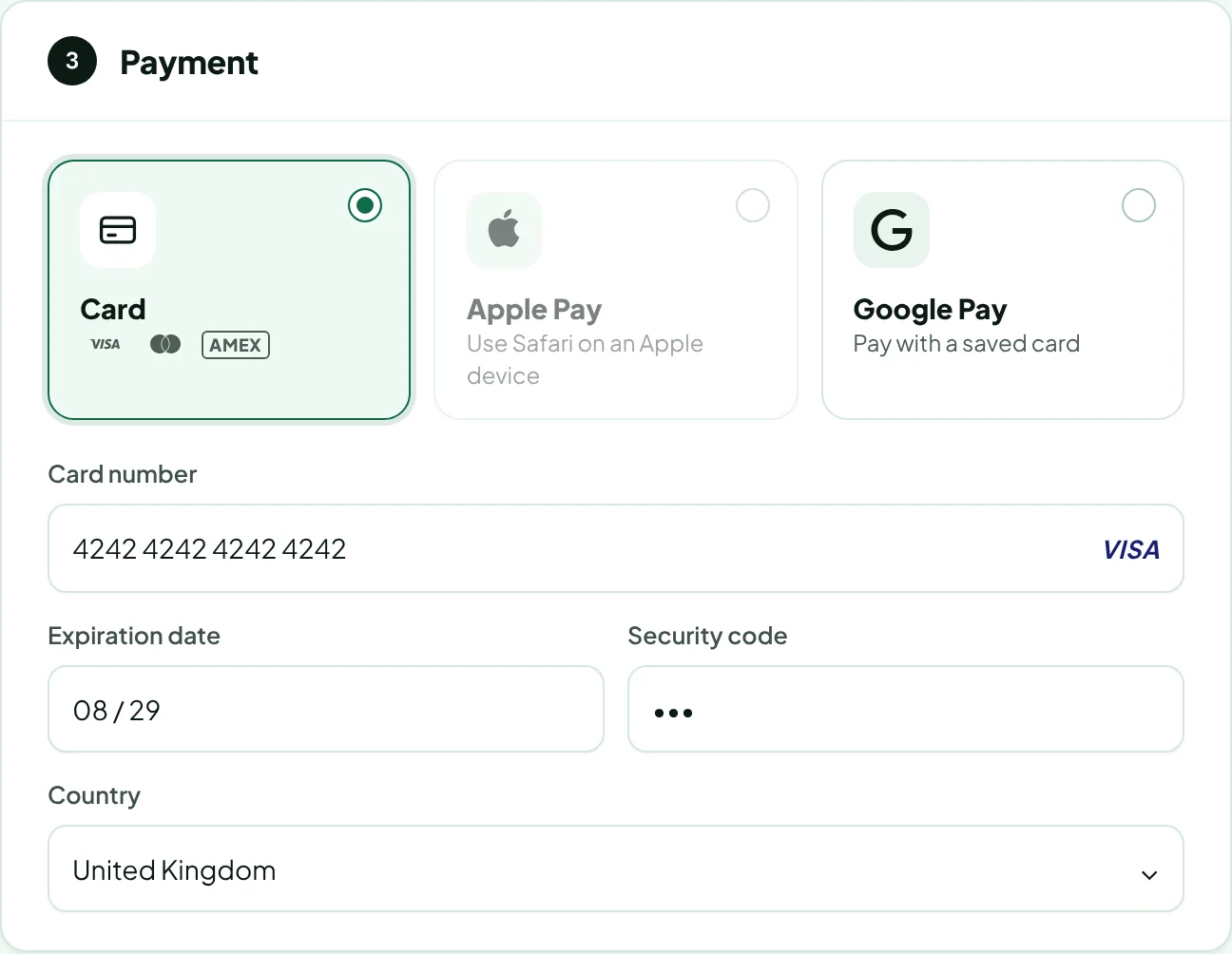
Settings → Billing shows this under How you pay, with the card used for each payment listed next to its receipt.
Campaign billing (charging a saved card each month) is being set up with customers one by one during early access. To start a campaign, email hello@rankticker.com.
Billing email, company name and VAT number
Receipts and invoices are emailed to your workspace's billing email, which can be different from your sign-in address (for example accounts@yourcompany.com).
Go to Settings → Billing.
In the Billing details card, change the company or billing name, the billing email or the VAT ID.
Click Save billing details. The next receipt goes to the new address.
Only the workspace Owner or an Admin can change these. Other roles see them read-only.
Billing address
Your billing name, address and VAT number appear on every receipt. The address is set at checkout:
Go to checkout. In section 2, Billing details, your saved details are shown.
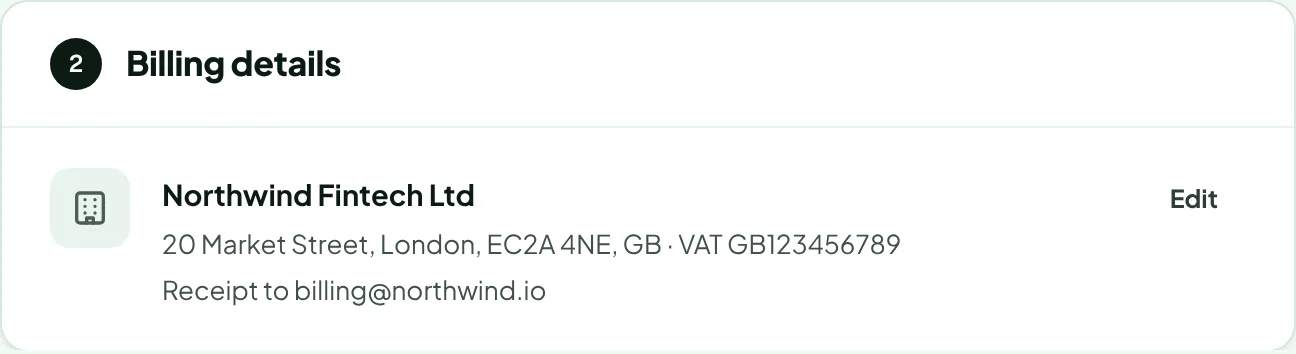
Click Edit, then change the name, address or VAT number.
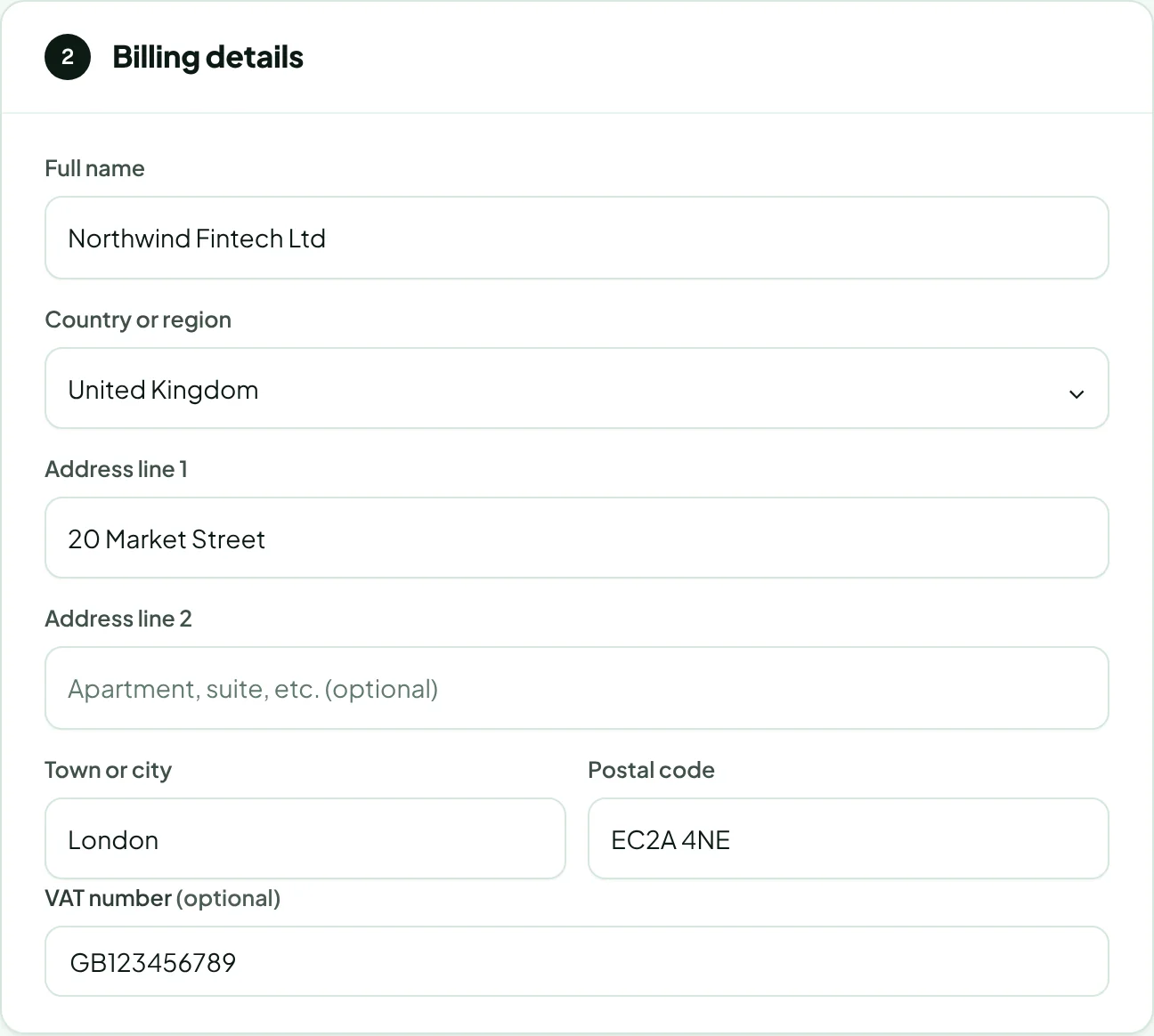
Complete the order. The new details are saved for your next checkout and appear on this order's receipt.
The Billing details card in Settings → Billing shows the address from your latest checkout.
Change details on a past receipt
Receipts can't be edited after payment. Email hello@rankticker.com with the receipt number and the correct details.
Thanks for letting us know.
Sorry about that. Tell us what was missing at hello@rankticker.com and we'll improve it.