Track your orders
Find any order across all projects, filter by status, date or project, and see what needs your attention.
Click Orders in the sidebar. The number next to it is how many orders are still in progress.
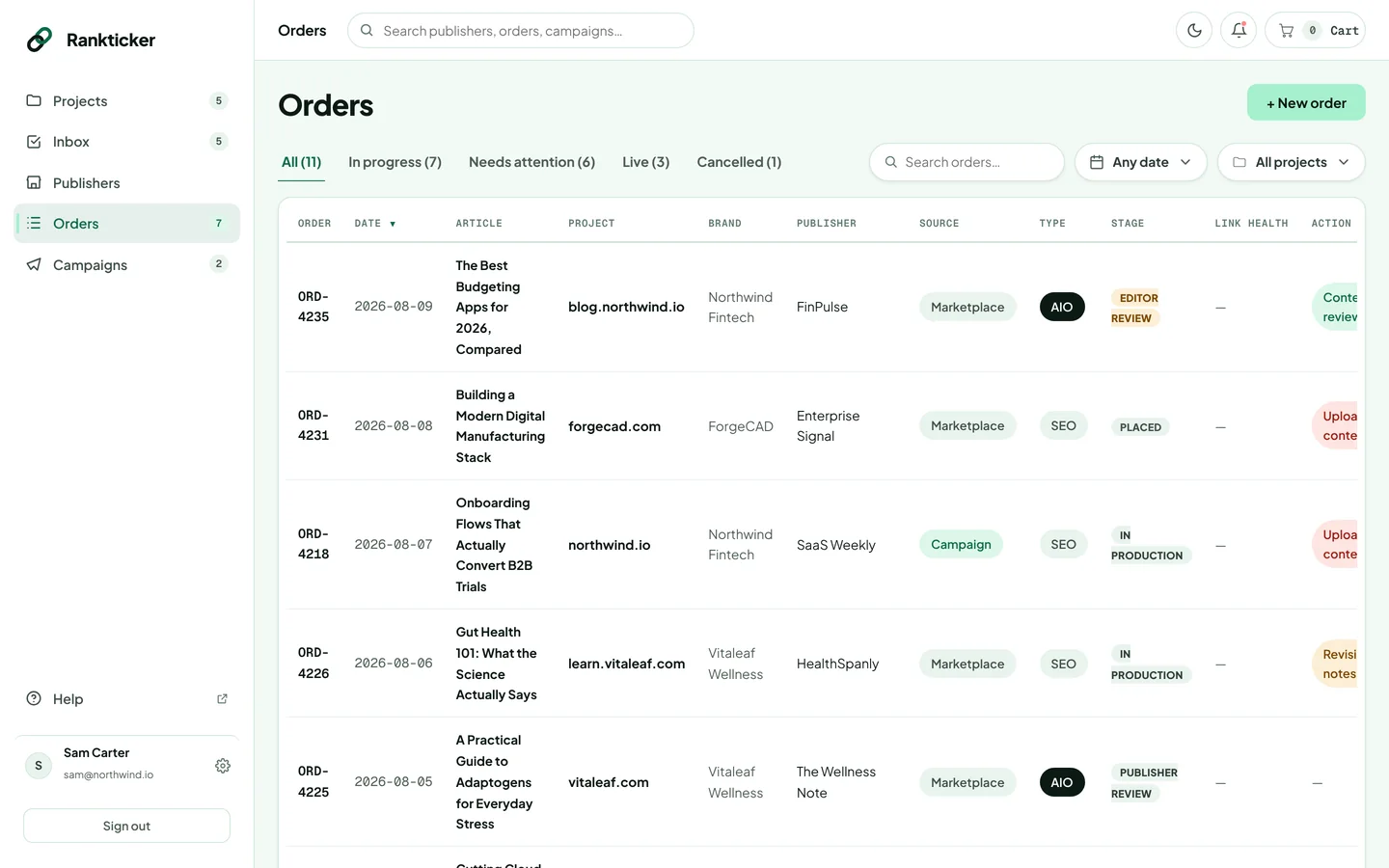
Tabs
| Tab | Shows |
|---|---|
| All | Every order. |
| In progress | Orders that aren't live or cancelled yet. |
| Needs attention | Orders waiting on you (upload, review, revision notes) and live links flagged for review. |
| Live | Published placements, with their link health. |
| Cancelled | Cancelled orders. |
Search and filter
- Search orders…: type an order ID, article title, publisher or project and press Enter.
- Any date: pick Last 30 days, Last 90 days or All time, or set a From and To date and click Apply.
- All projects: tick one or more projects. Use the search box at the top of the list if you have many.
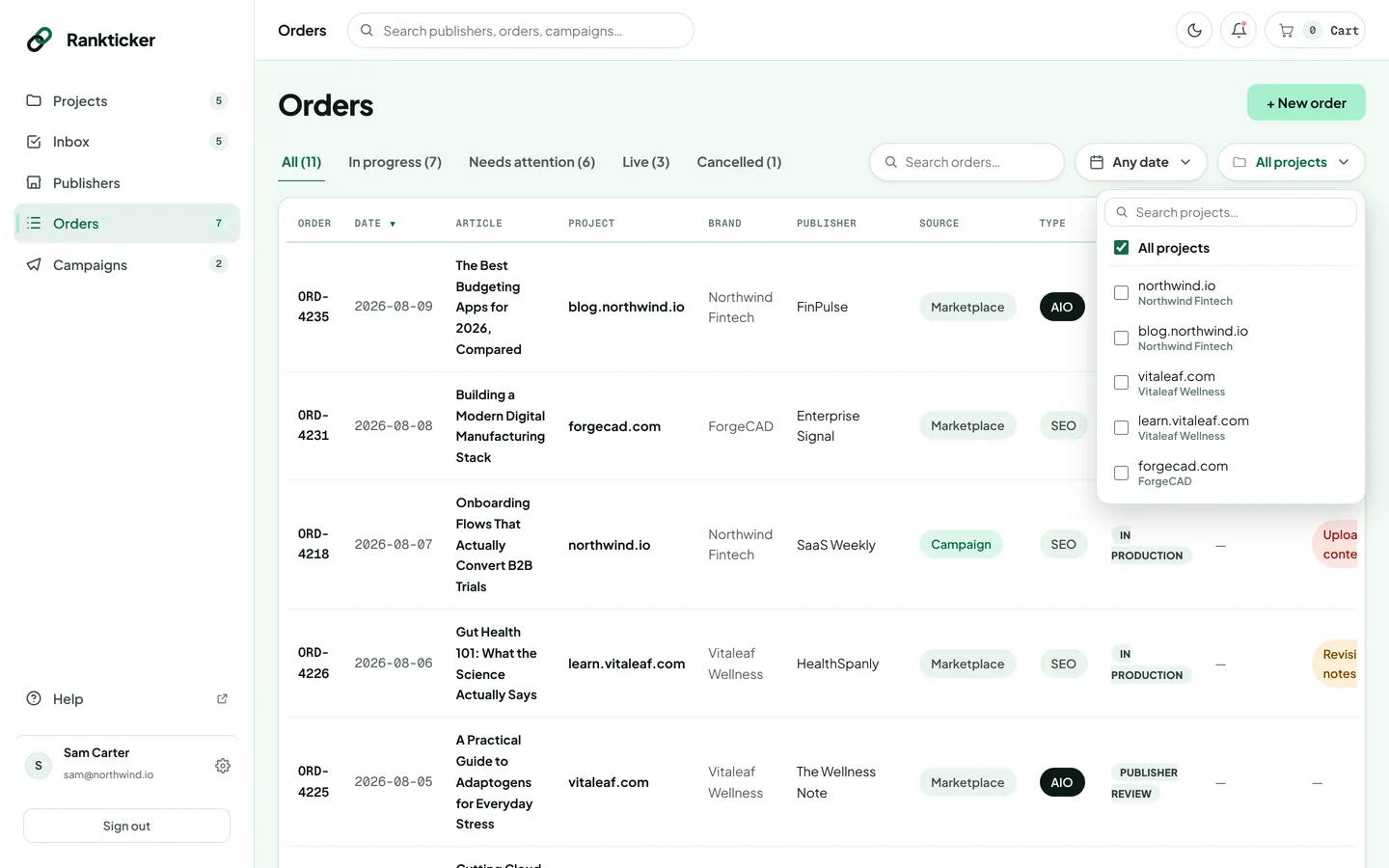
Click the Date, Stage or Price column header to sort; click again to reverse.
Reading the table
- Source: Marketplace for orders you placed yourself, Campaign for orders a campaign placed.
- Type: SEO for link building, AIO for AI Optimized Articles and AI-visibility campaigns.
- Stage: where the order is now. See Order stages explained.
- Action needed: what you need to do, if anything.
Click a row to open the order. + New order takes you to the marketplace.
Was this article helpful?
Thanks for letting us know.
Sorry about that. Tell us what was missing at hello@rankticker.com and we'll improve it.