Team roles: change a role or remove someone
What Owners, Admins, Editors and Viewers can do, and how to change someone's role or remove them from the workspace.
The four roles
| Role | Can |
|---|---|
| Owner | Everything an Admin can do, and adds or removes Admins. There's one Owner: the person who created the workspace. |
| Admin | Creates projects and campaigns, places orders, manages billing details, and invites or removes Editors and Viewers. |
| Editor | Sees everything, and comments on, approves and asks for revisions to content. Can't place orders or change projects and campaigns. |
| Viewer | Sees all projects, campaigns, orders and reports, but can't change anything. |
Change someone's role
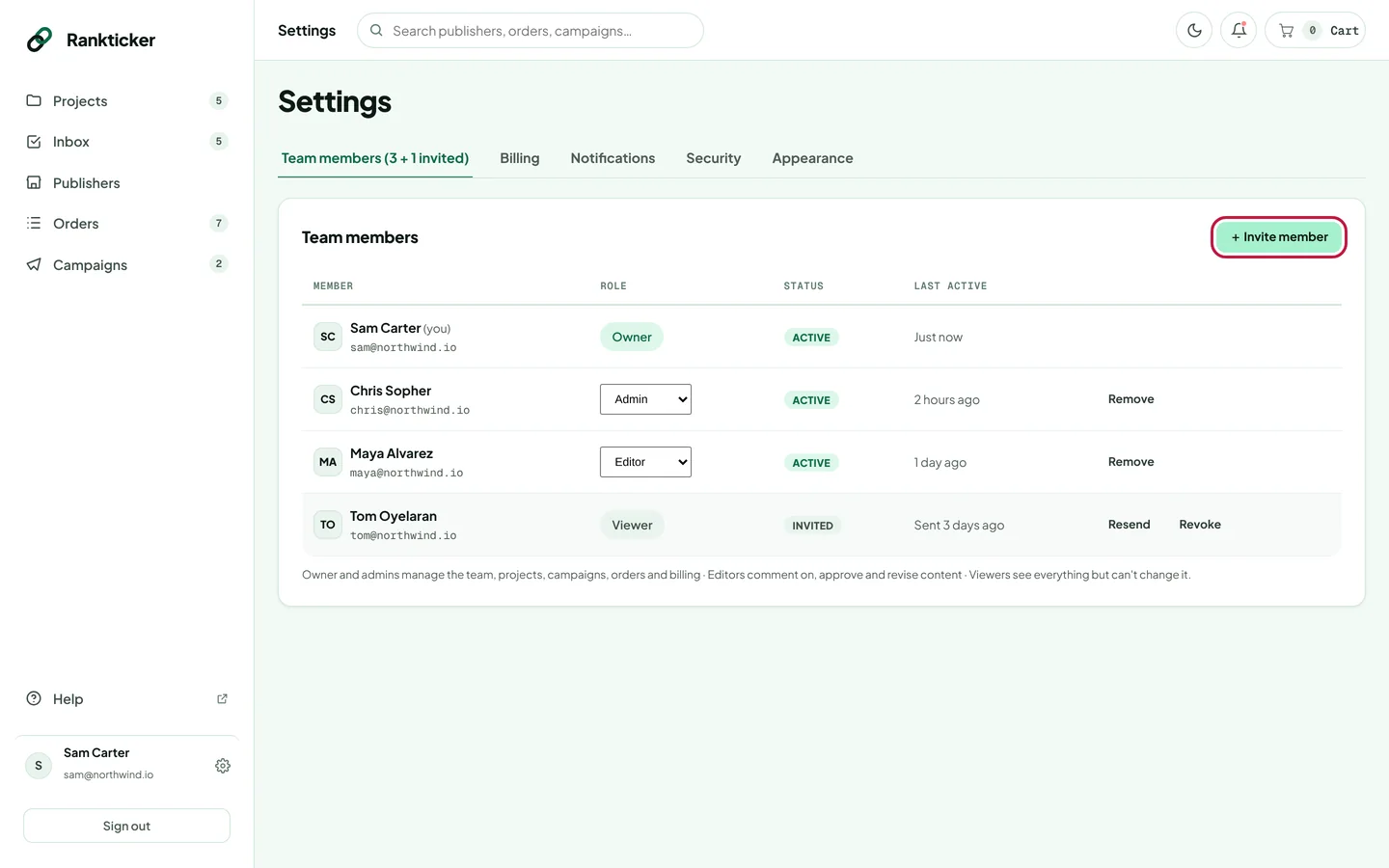
Go to Settings → Team members.
Choose the new role in the Role dropdown next to their name. It's saved straight away. Admins can switch people between Editor and Viewer; only the Owner can make someone an Admin or change an Admin.
Remove someone
Click Remove at the end of their row and confirm. They lose access to the workspace straight away. Projects, campaigns and orders they created stay in the workspace, with the Owner. Their account keeps working with a new, empty workspace of its own.
The Owner's role can't be changed and the Owner can't be removed. To hand the workspace to someone else, email hello@rankticker.com from the Owner's address.
Thanks for letting us know.
Sorry about that. Tell us what was missing at hello@rankticker.com and we'll improve it.