Change your password and sign out other devices
Change your password from Settings → Security, see the password rules, and sign out everywhere except the device you're on.
Change your password
Go to Settings → Security.
Under Change password, enter the new password twice. The meter shows when it's strong enough.
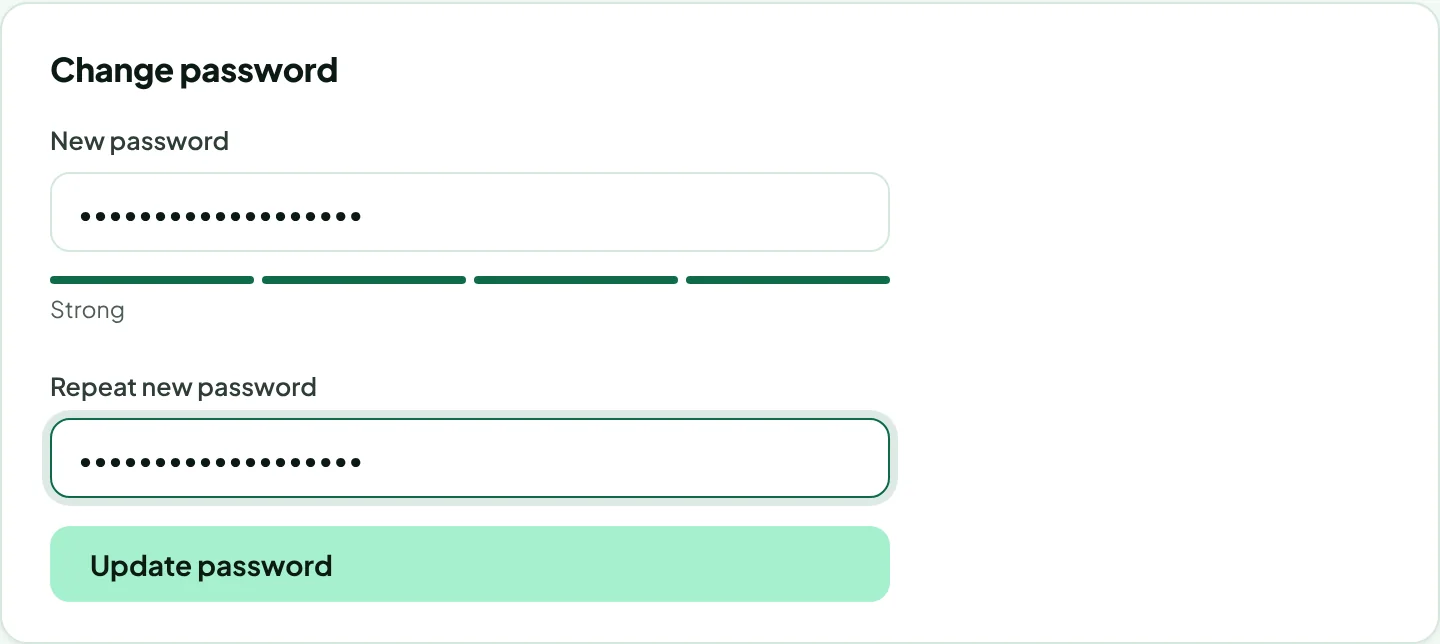
Click Update password. For your security we may email you a code to confirm the change; enter it in the field that appears and click Update password again.
Password rules: at least 10 characters, with upper- and lowercase letters and at least one number. It can't be a commonly used password, repeat one character four times in a row, or contain your name or email address.
Signed up with Google or Microsoft? You don't need a Rankticker password. Keep signing in with that button. Forgot your password and can't sign in? Use Forgot password? on the sign-in screen.
Sign out other devices
Signed in on a shared or lost computer? Under Sessions, click Sign out other sessions. Every other browser and device is signed out; you stay signed in where you are.
Sign out on this device
Click Sign out at the bottom of the sidebar. Rankticker also signs you out automatically after 14 days without use.
Thanks for letting us know.
Sorry about that. Tell us what was missing at hello@rankticker.com and we'll improve it.