Find, view and download receipts
Every payment gets a receipt in Settings → Billing. Open it, download it as a PDF, and see refunds.
Rankticker issues a receipt for every payment. It's emailed to you and kept in the app.
Click your name at the bottom of the sidebar to open Settings, then the Billing tab.
Under Receipts you'll see each payment: receipt number, date, number of placements, the card or wallet used, status and amount.
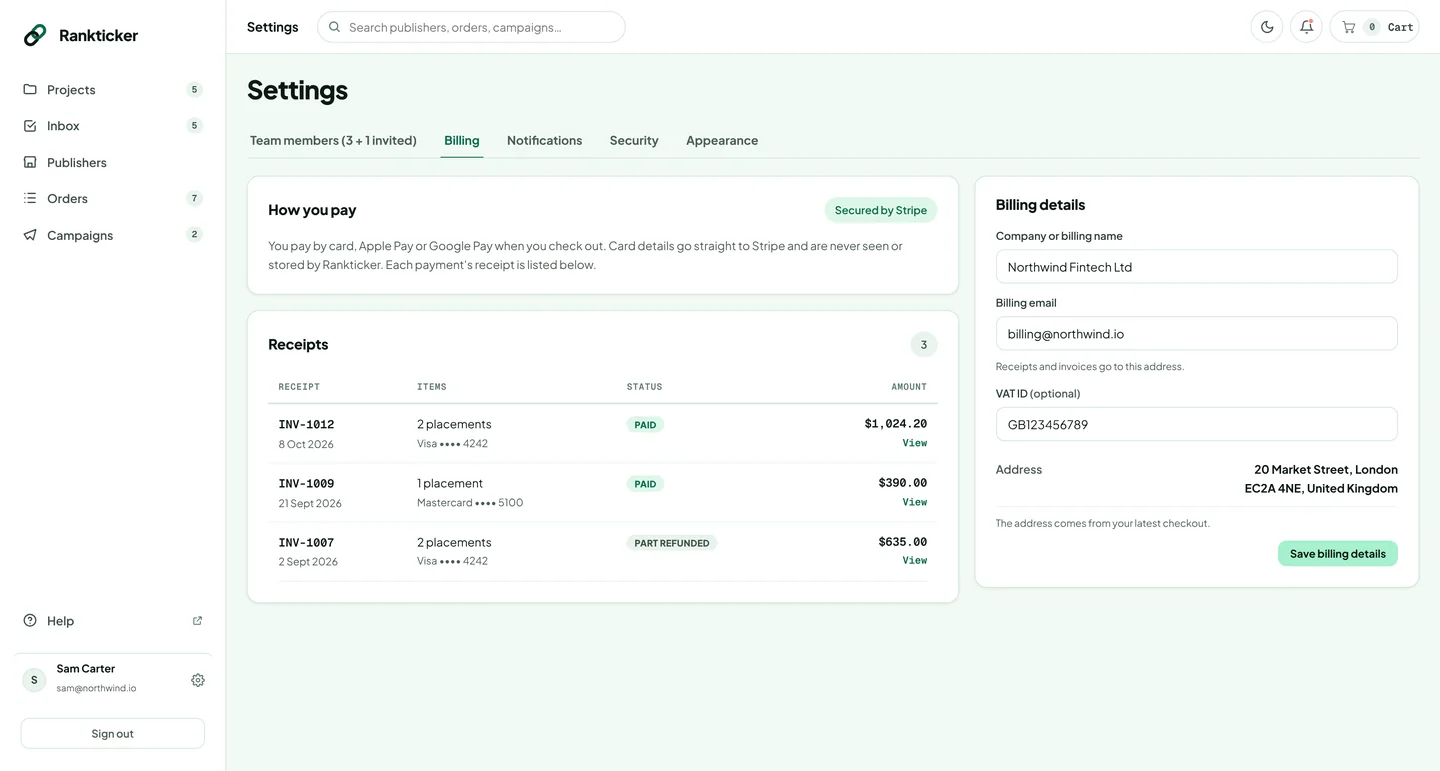
Click a receipt (or View) to open it.
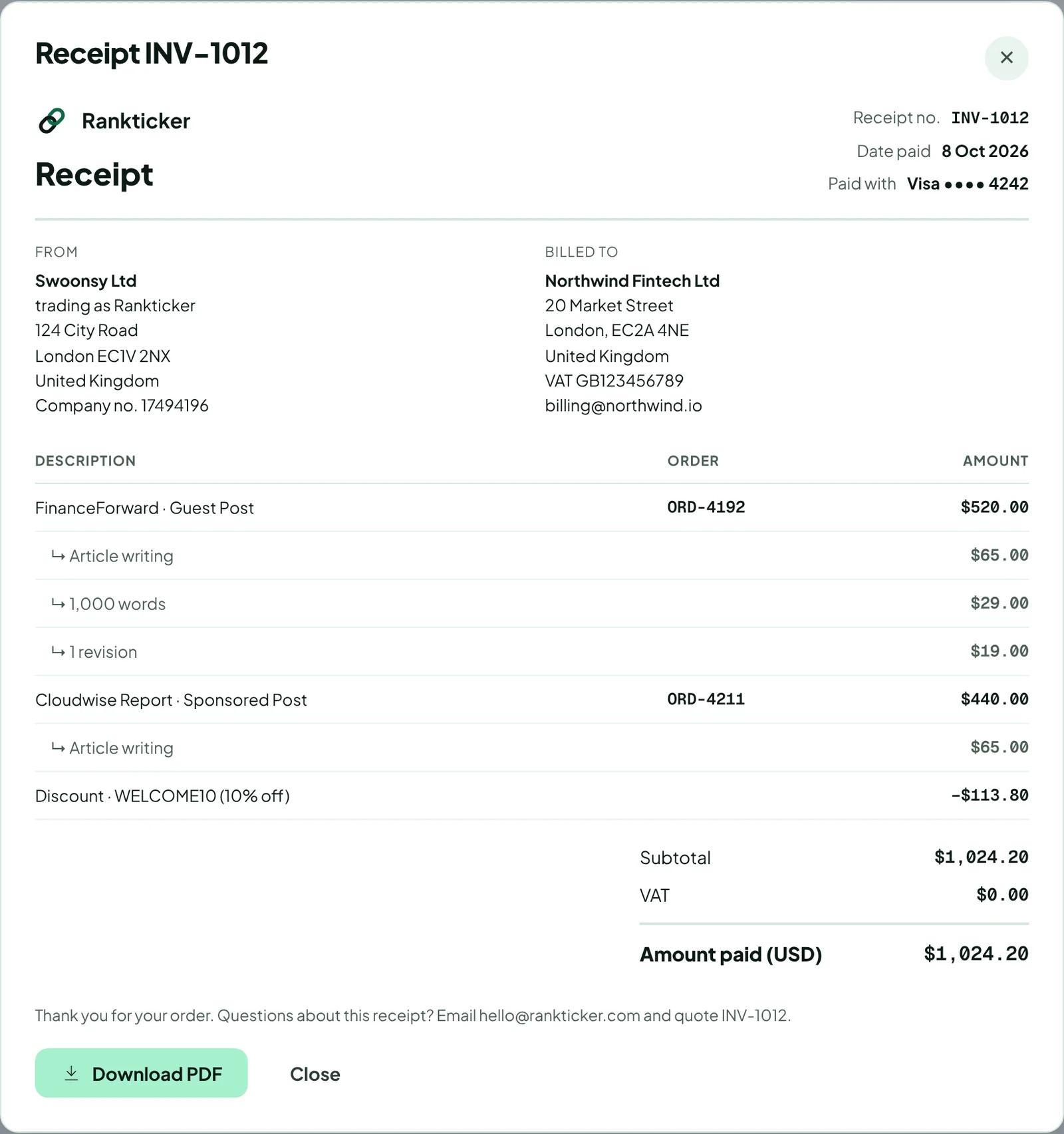
Click Download PDF to save it, for example for your accounts.
You can also open the receipt straight after paying, with View receipt on the Order received page.
What's on a receipt
- The receipt number (starts with INV-), the date paid and the card or wallet used.
- From: Swoonsy Ltd, trading as Rankticker, with our address and company number.
- Billed to: your billing name, address, VAT number and billing email (how to change them).
- A line per placement with its order ID, and indented lines for options such as article writing, word count or revisions.
- Any discount, VAT and the total in USD.
Refunds
A receipt with a refund shows Refunded or Part refunded in the list, and the refunded amount on the receipt. See Prices, VAT and refunds.
Need a receipt with different details, or a copy sent to your accounts team? Email hello@rankticker.com and quote the receipt number.
Thanks for letting us know.
Sorry about that. Tell us what was missing at hello@rankticker.com and we'll improve it.