See a project's orders and campaigns
Use the Orders and Campaigns tabs inside a project to see live links, pending orders, spend and recent activity for that one site.
Orders tab
Open a project and click Orders. The tab shows the project's live links, pending orders, total spent and number of campaigns, a site snapshot, recent activity, and a table of every order for the project with its stage and link health.
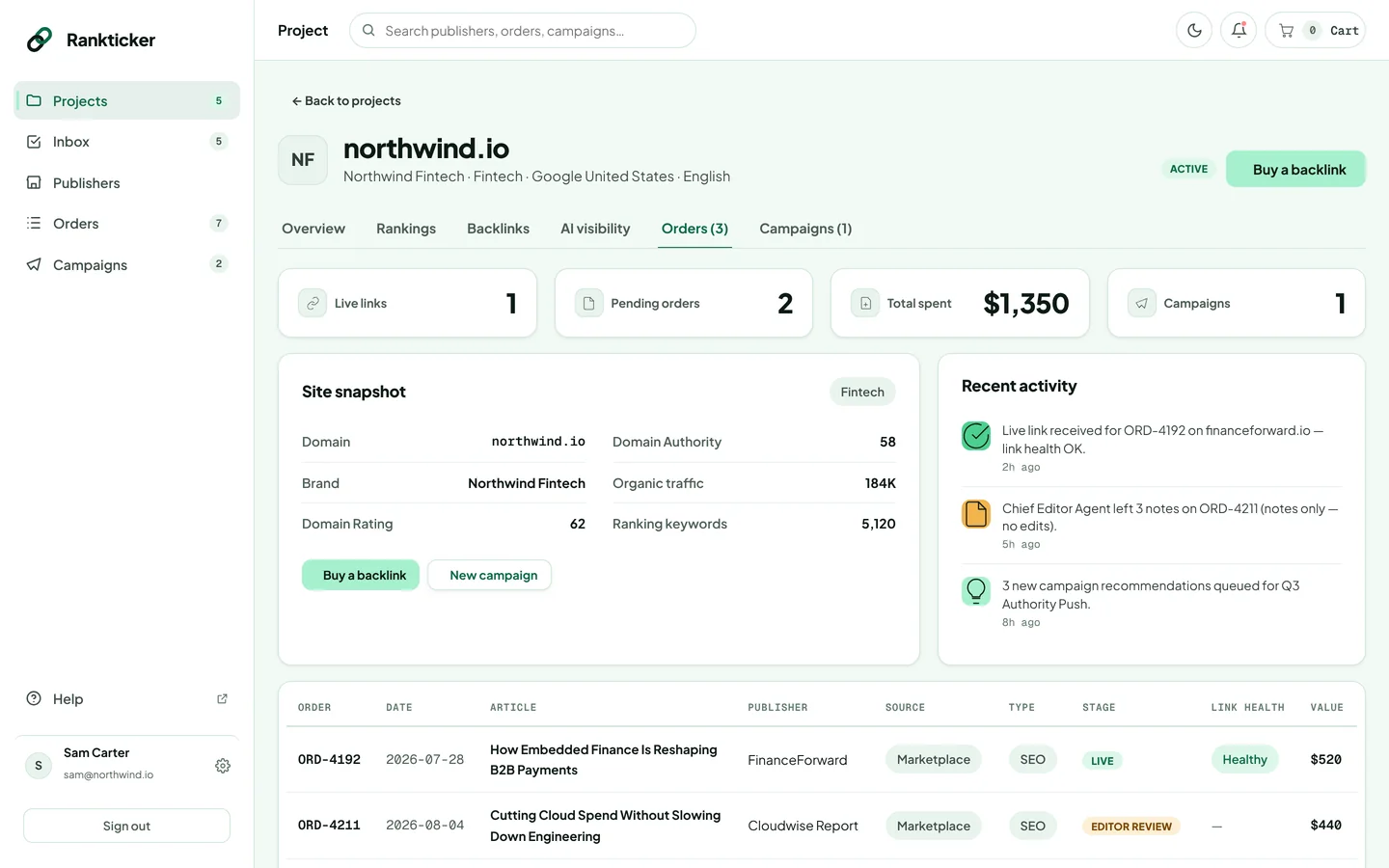
Click any order to open it. From the snapshot you can jump to Buy a backlink or New campaign.
Want orders across all projects? Use Orders in the sidebar and filter by project (how).
Campaigns tab
Click Campaigns to see the project's campaigns with budget and spend, links live, average DR, status and recommendations waiting for review. To start one, pick a goal under Create a new campaign: the campaign builder opens with this project already selected.
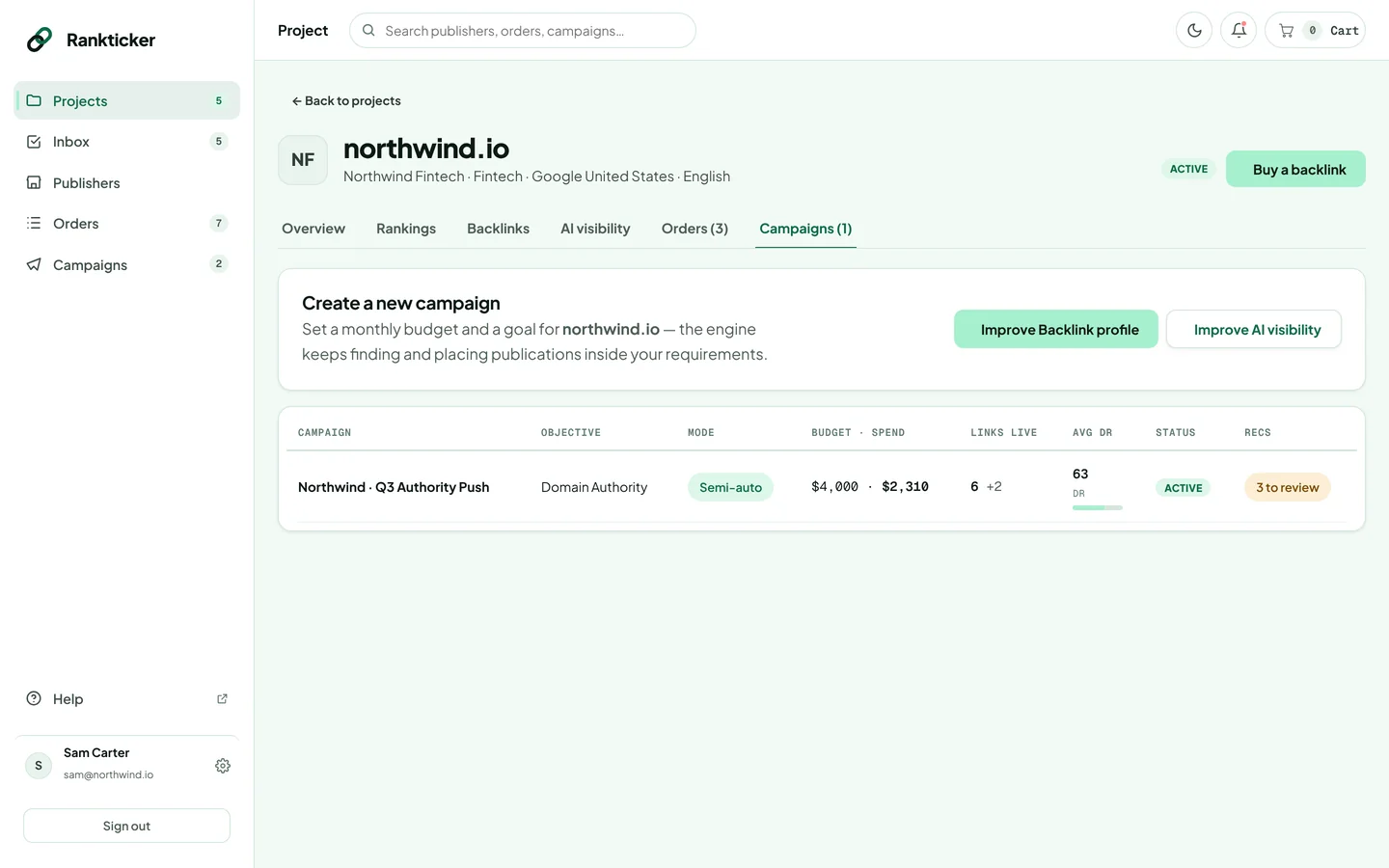
See Create a campaign.
Thanks for letting us know.
Sorry about that. Tell us what was missing at hello@rankticker.com and we'll improve it.