Create your Rankticker account
Sign up with Google, Microsoft or your work email, confirm your address with a code, and land in your workspace.
A Rankticker account is free. You only pay when you order a placement, and there's no subscription during early access (see pricing). You can sign up in three ways: with Google, with Microsoft, or with your work email and a password.
Sign up with Google or Microsoft
Go to app.rankticker.com. If you've never signed in on this browser you'll see Create your account.
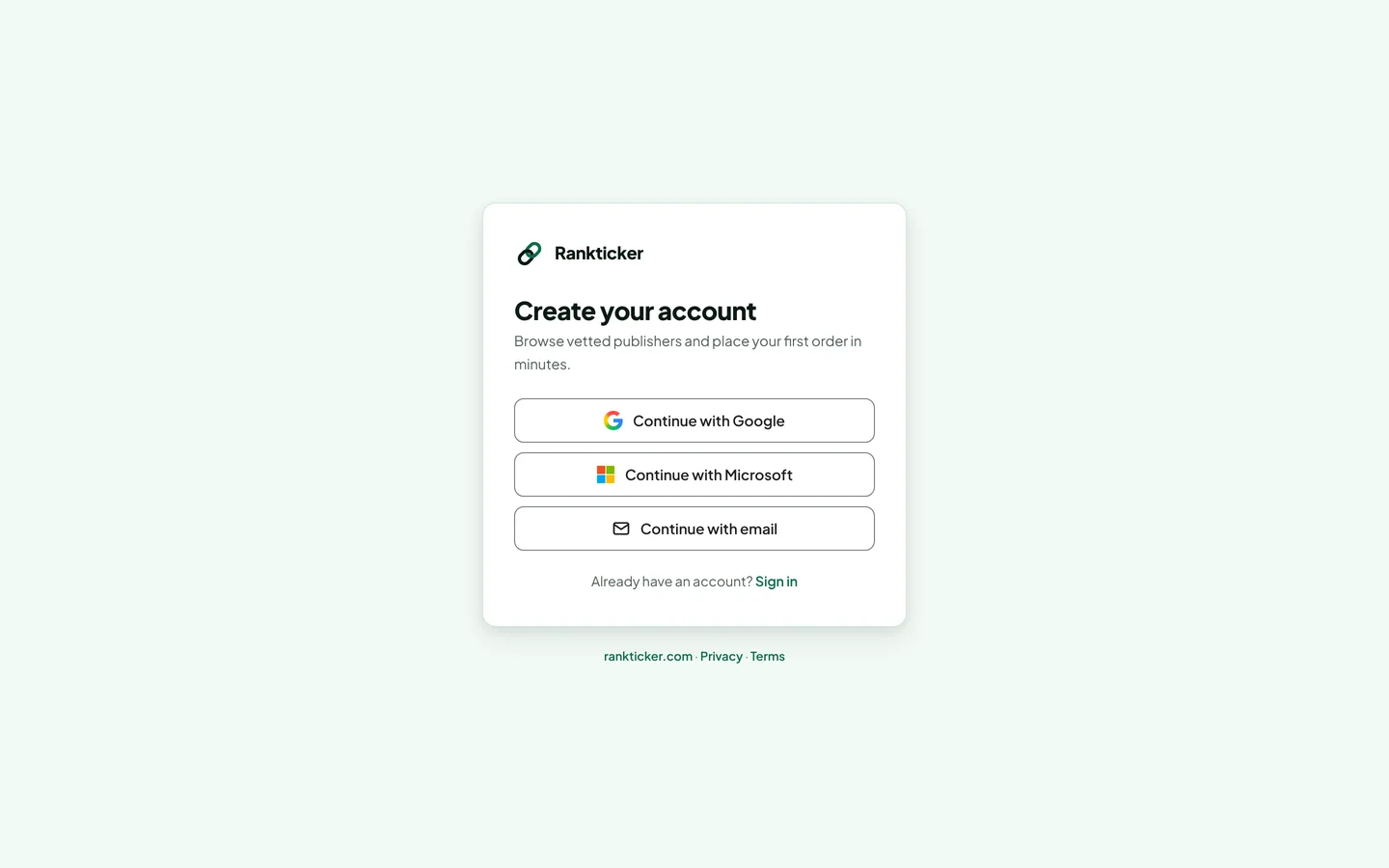
The sign-up screen offers three equal ways in. Click Continue with Google or Continue with Microsoft and pick the account you want to use.
The first time, Rankticker asks you to finish setting up your account: confirm your name, add your company (optional) and accept the terms. Then you go straight to your workspace.
If you already have a Rankticker account with the same email address, signing in with Google or Microsoft links to that account. You don't end up with two.
Sign up with your email
Click Continue with email.
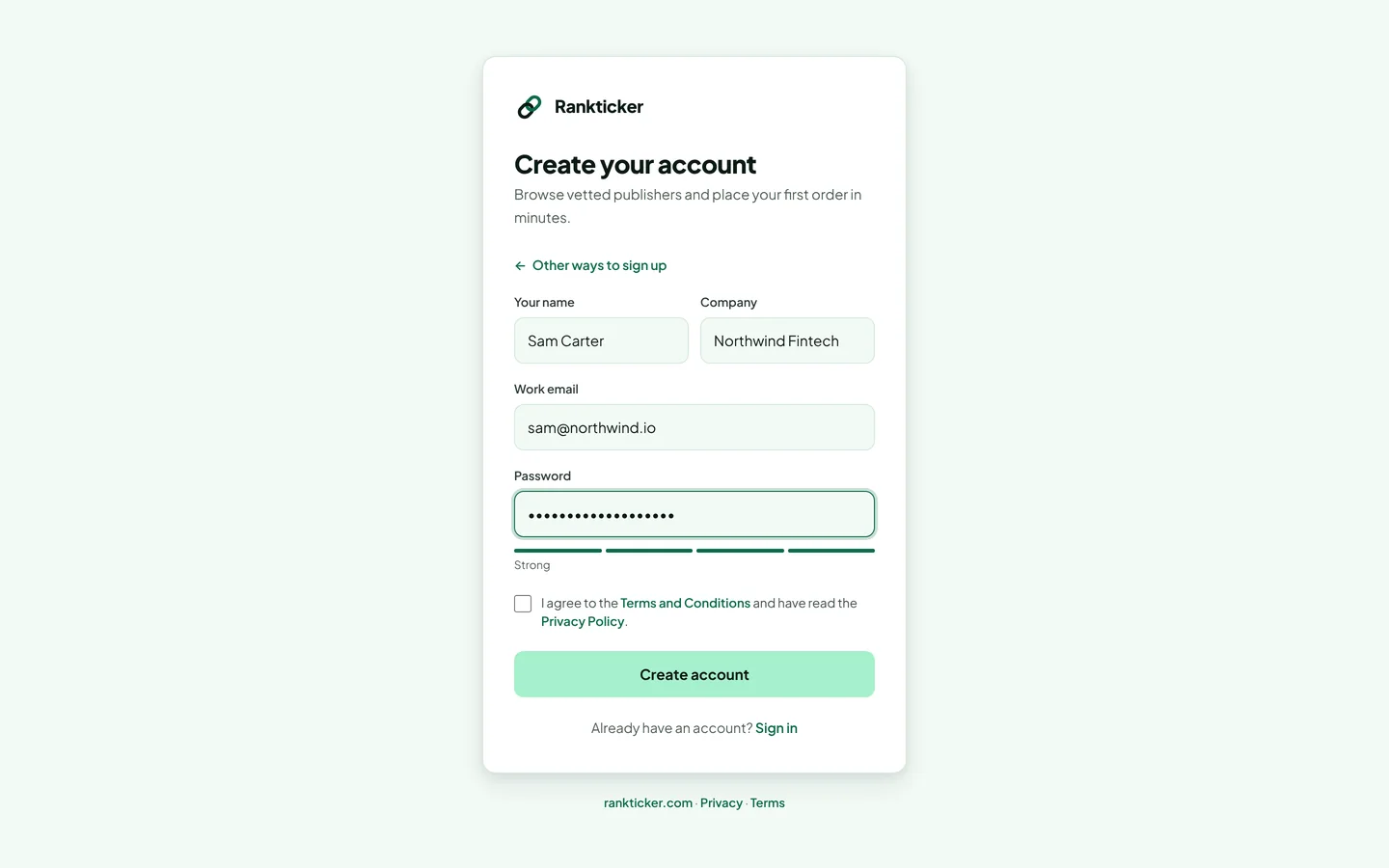
Enter your name, company (optional), work email and a password, then tick the box to accept the Terms and Conditions and click Create account.
We email you a verification code. Enter it on the Check your inbox screen and click Verify email. You can also click the link in the email instead.
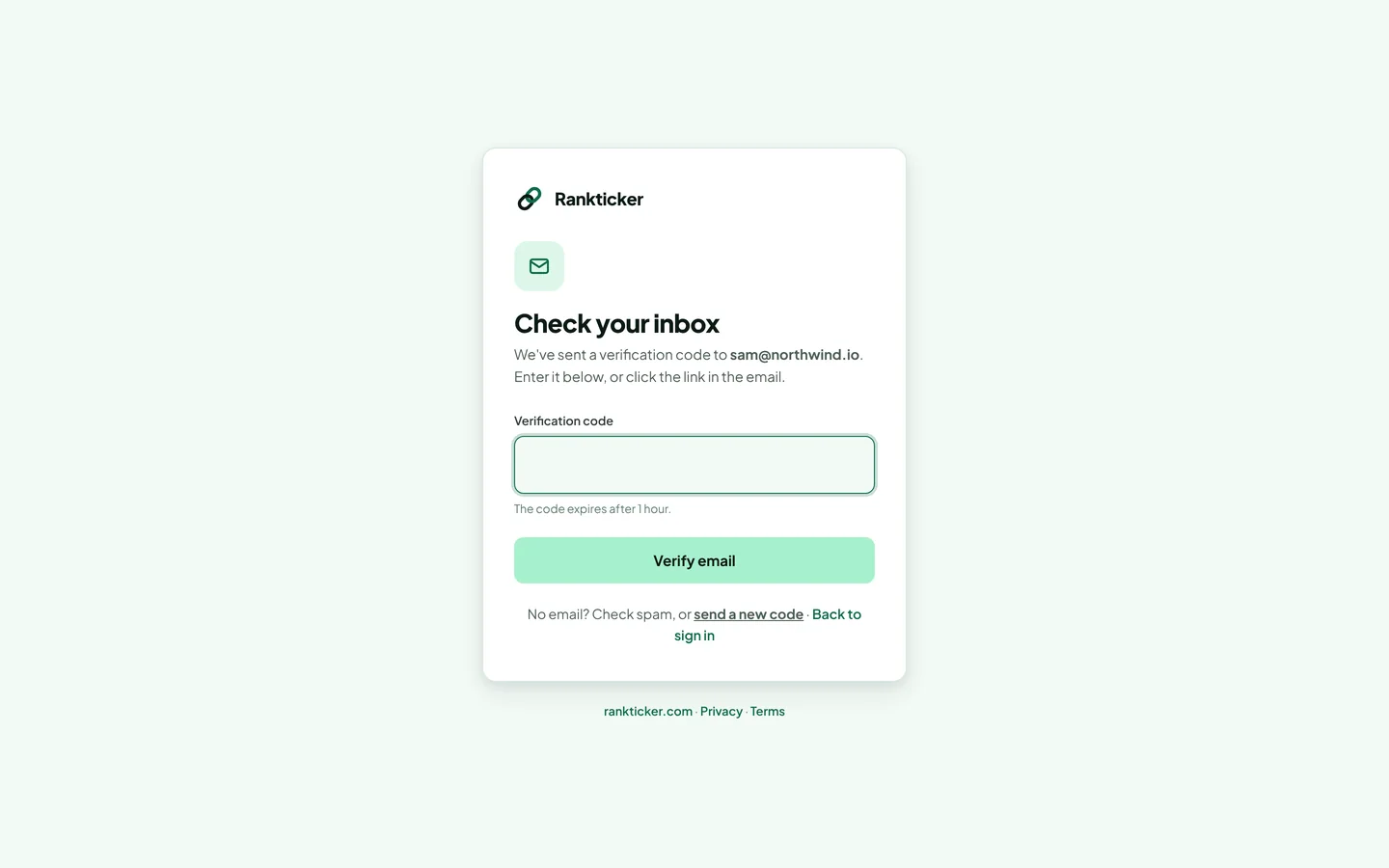
The code expires after one hour. No email? Check spam, or click “send a new code”.
Password rules
Your password needs at least 10 characters with upper- and lowercase letters and at least one number. It can't be a commonly used password or contain your name or email address. The meter under the field shows when it's strong enough.
What to do next
- Add your first project (the website you're building links to).
- Browse publishers and shortlist a few.
- Turn on two-step verification to protect the account.
New to the app? The quick start guide walks through everything from sign-up to your first live link.
Thanks for letting us know.
Sorry about that. Tell us what was missing at hello@rankticker.com and we'll improve it.