Sign in and reset your password
How to sign in with Google, Microsoft or email, what to do if you forgot your password, and how sign-in works with two-step verification.
Sign in
Go to app.rankticker.com. Returning visitors land on Sign in. The method you used last time is marked Last used.
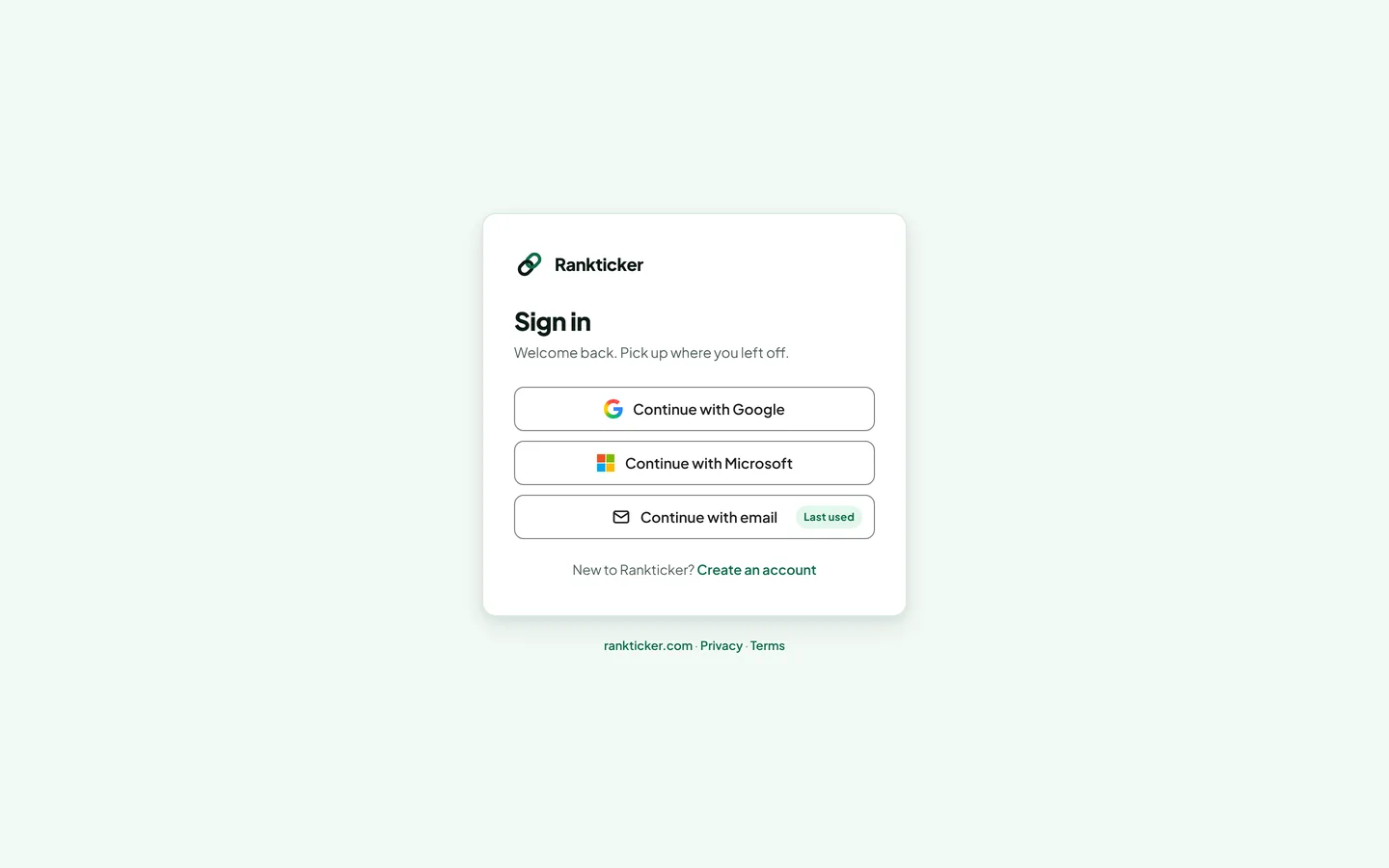
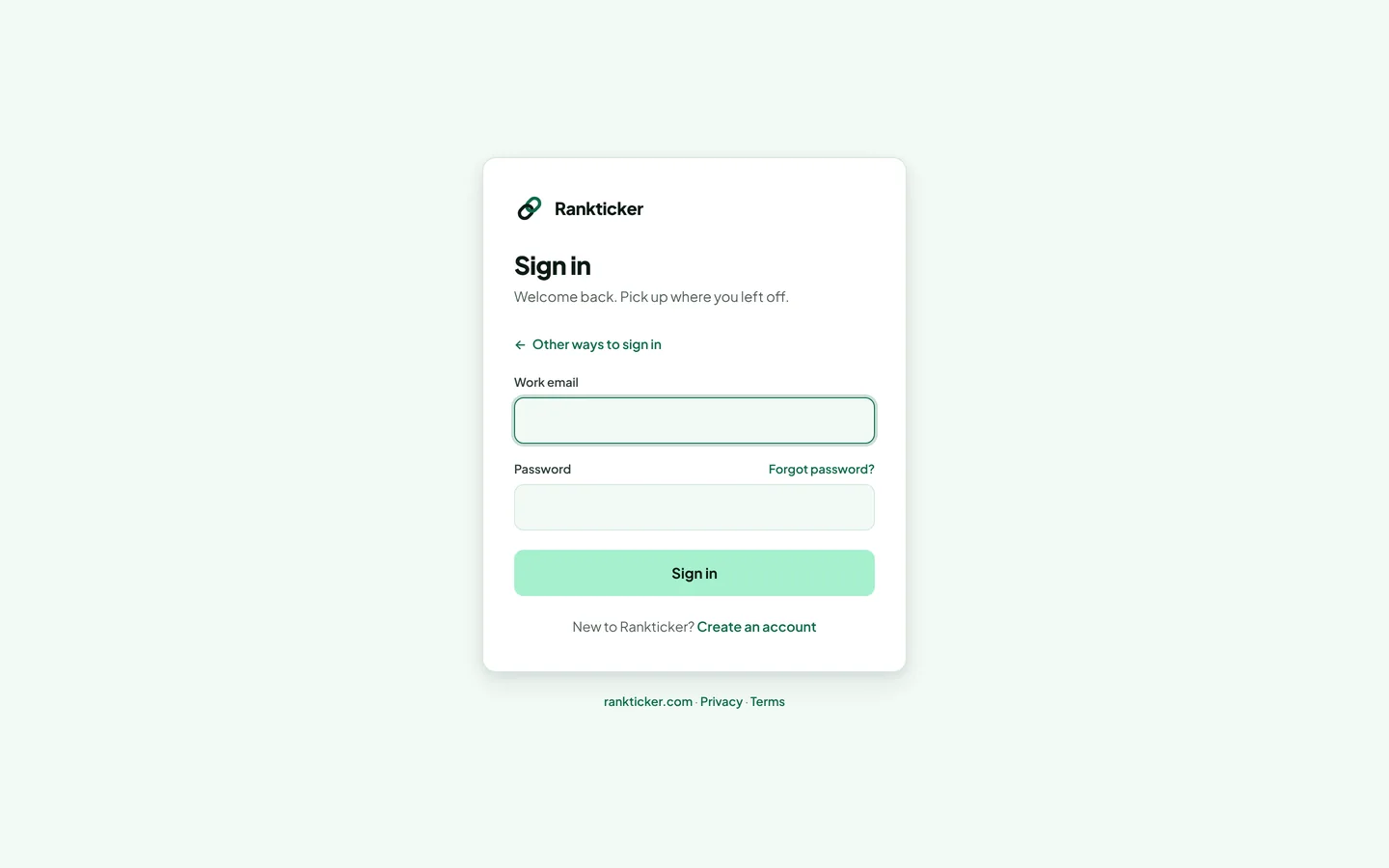
Pick Continue with Google, Continue with Microsoft or Continue with email. For email, enter your work email and password and click Sign in.
If your account has two-step verification turned on, enter the 6-digit code from your authenticator app.
You stay signed in on that browser. After 14 days without using Rankticker you're signed out automatically and need to sign in again.
Reset a forgotten password
On the sign-in screen, choose Continue with email and click Forgot password?.
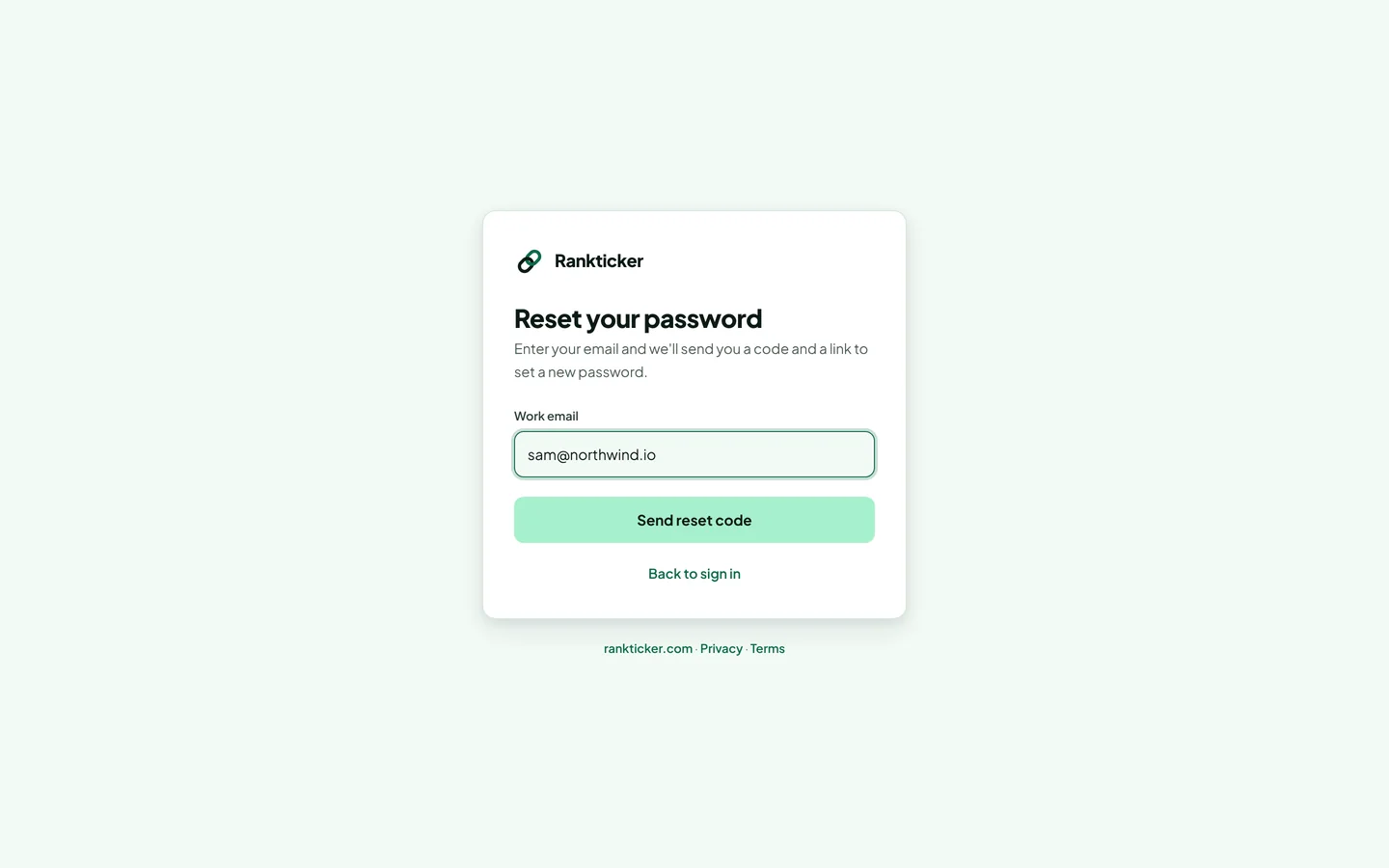
Enter your email address and click Send reset code.
Enter the reset code from the email and click Continue (or click the link in the email instead).
Choose a new password and click Save password. You're signed in straight after.
For your security we don't say whether an email address has an account. If no email arrives within a few minutes, check spam and make sure you used the address you signed up with. If you signed up with Google or Microsoft, use that button instead: those accounts don't have a Rankticker password.
Lost the phone with your authenticator app?
Email hello@rankticker.com from the address on your account. We'll verify it's you before removing two-step verification. Read more in Turn on two-step verification.
Thanks for letting us know.
Sorry about that. Tell us what was missing at hello@rankticker.com and we'll improve it.