Turn on two-step verification
Protect your account with a 6-digit code from an authenticator app such as 1Password, Google Authenticator or Authy.
With two-step verification on, signing in needs your password and a 6-digit code from an authenticator app. We recommend it for everyone.
Turn it on
Go to Settings and click the Security tab.
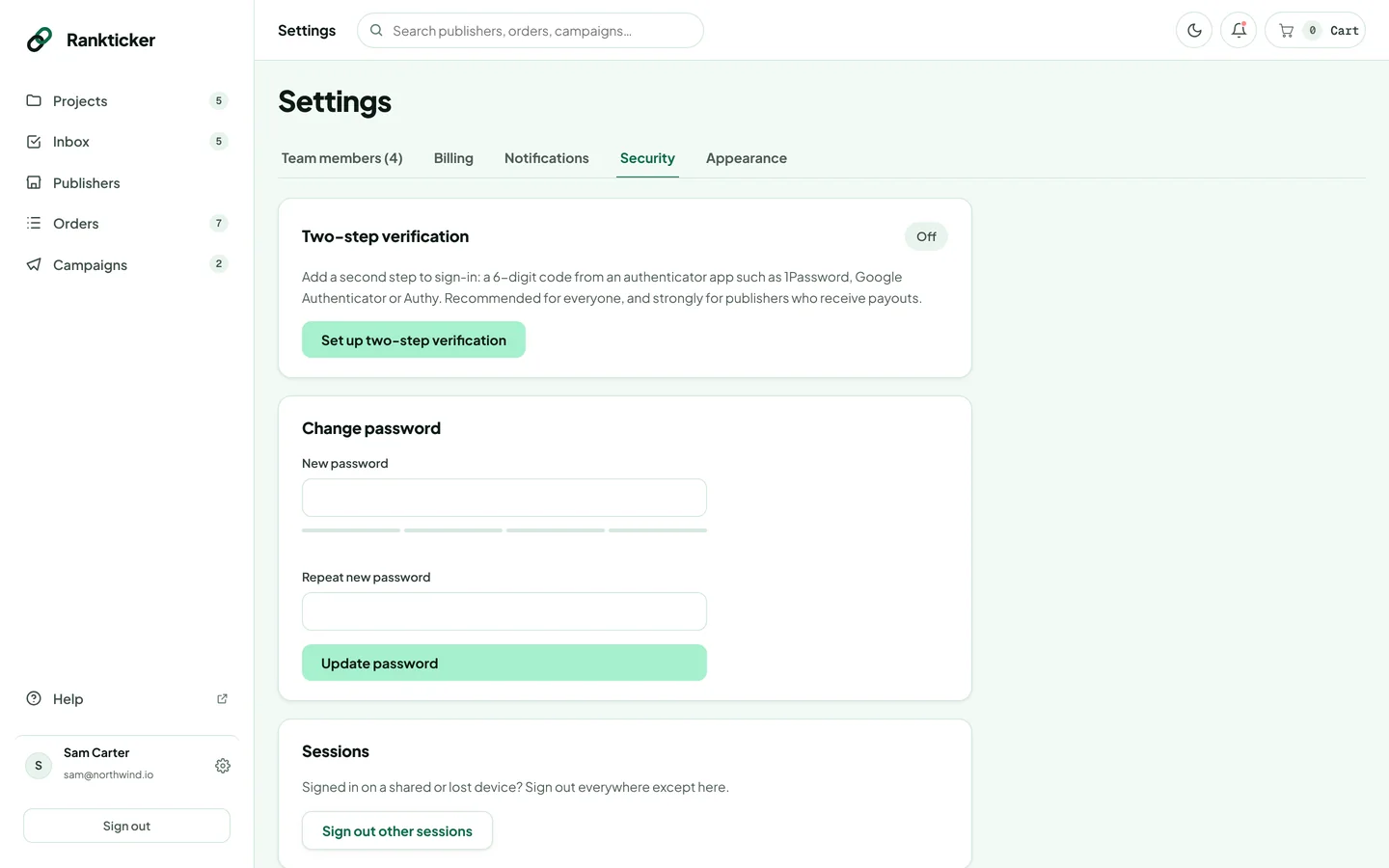
Click Set up two-step verification.
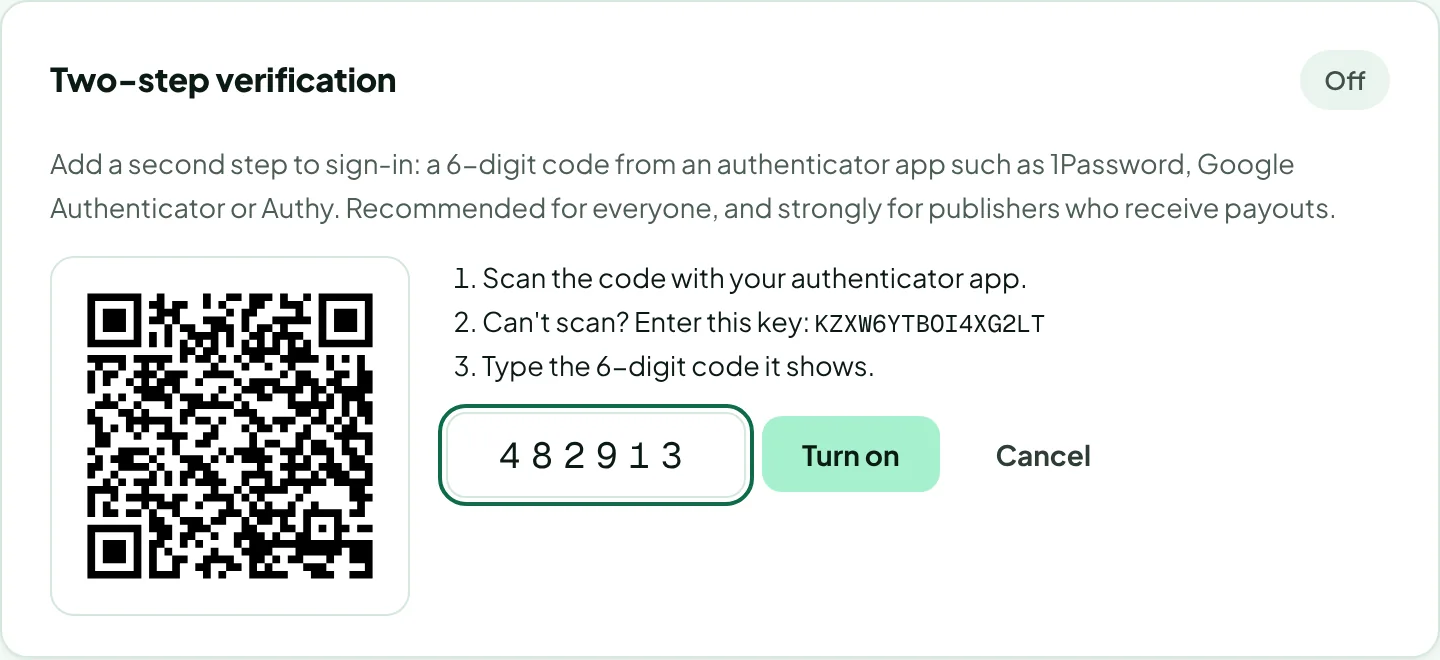
Open your authenticator app (1Password, Google Authenticator, Authy or similar) and scan the QR code. Can't scan? Enter the key shown next to it.
Type the 6-digit code the app shows and click Turn on.
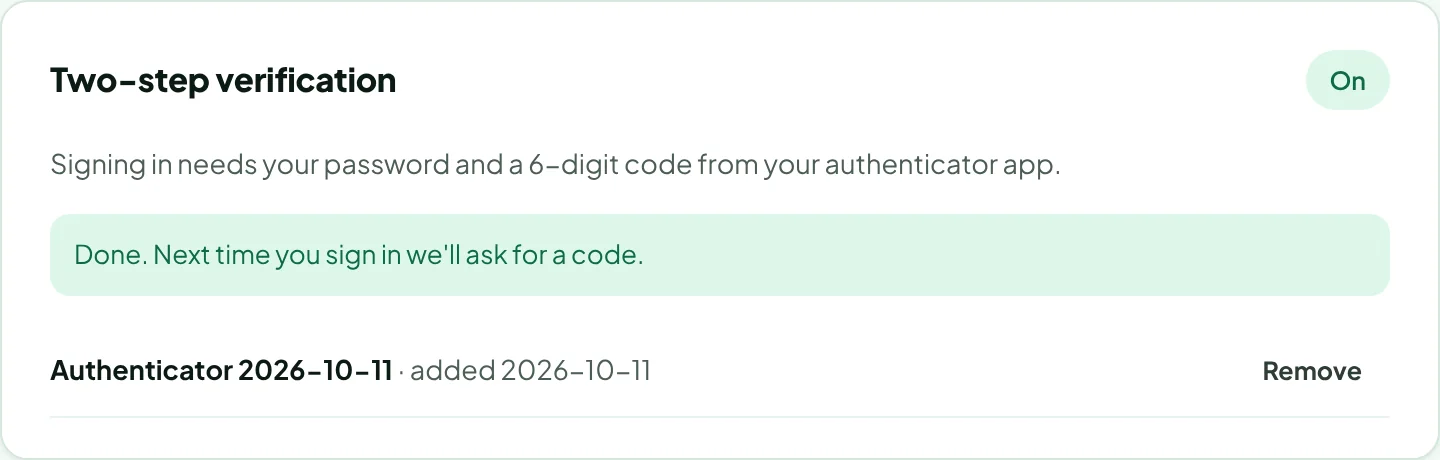
The card now says On and lists your authenticator with the date you added it.
Signing in with two-step verification
After your password (or Google or Microsoft sign-in), enter the current code from the app. Some sensitive actions may ask for a fresh code too.
Turn it off or switch phones
Click Remove next to the authenticator to turn two-step verification off, then set it up again on the new phone.
Lost the phone with your authenticator? Email hello@rankticker.com from the address on your account. We'll confirm it's you before we remove two-step verification.
Codes not accepted? Authenticator codes depend on your phone's clock. Make sure the time is set automatically, then try the next code.
Thanks for letting us know.
Sorry about that. Tell us what was missing at hello@rankticker.com and we'll improve it.